
Daily Build FAQsUpdated 5 months ago
Overview
Daily Build is a daily 3D puzzle game where players use Board Blocks to stack, build, and solve a fresh challenge every day. Designed for one or more players and ages 6 and up, Daily Build features three difficulty levels—Easy, Medium, and Hard—with new puzzles released every day.
What You Need
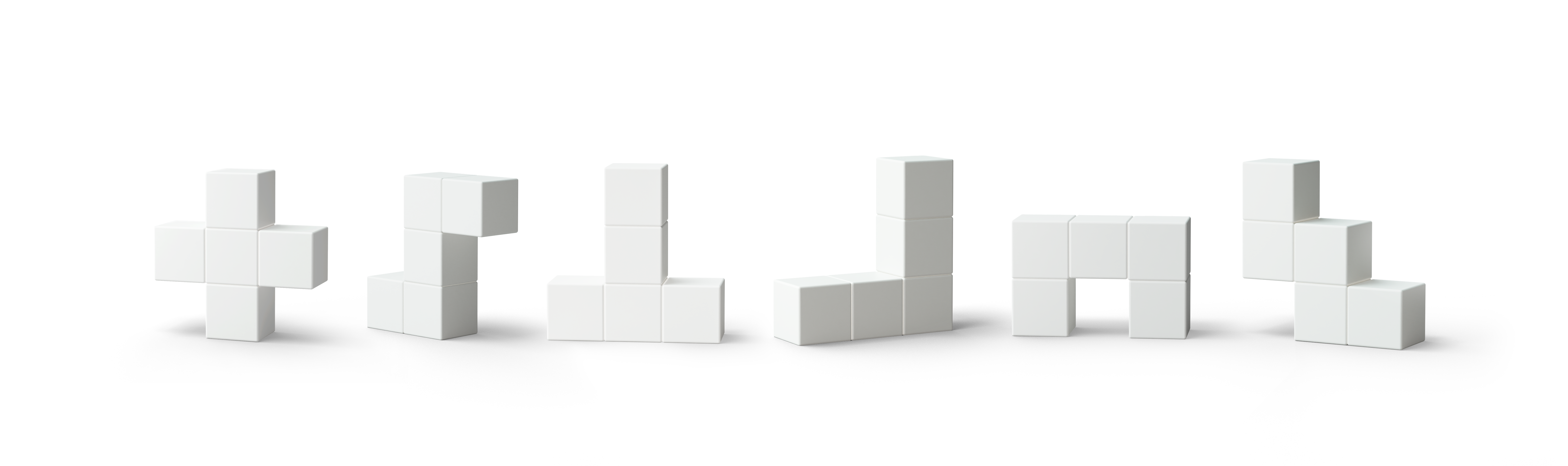
Board Blocks (6 pieces)— the same custom 3D block set included with the Strata & Daily Build Collection
How to Play
Tutorial
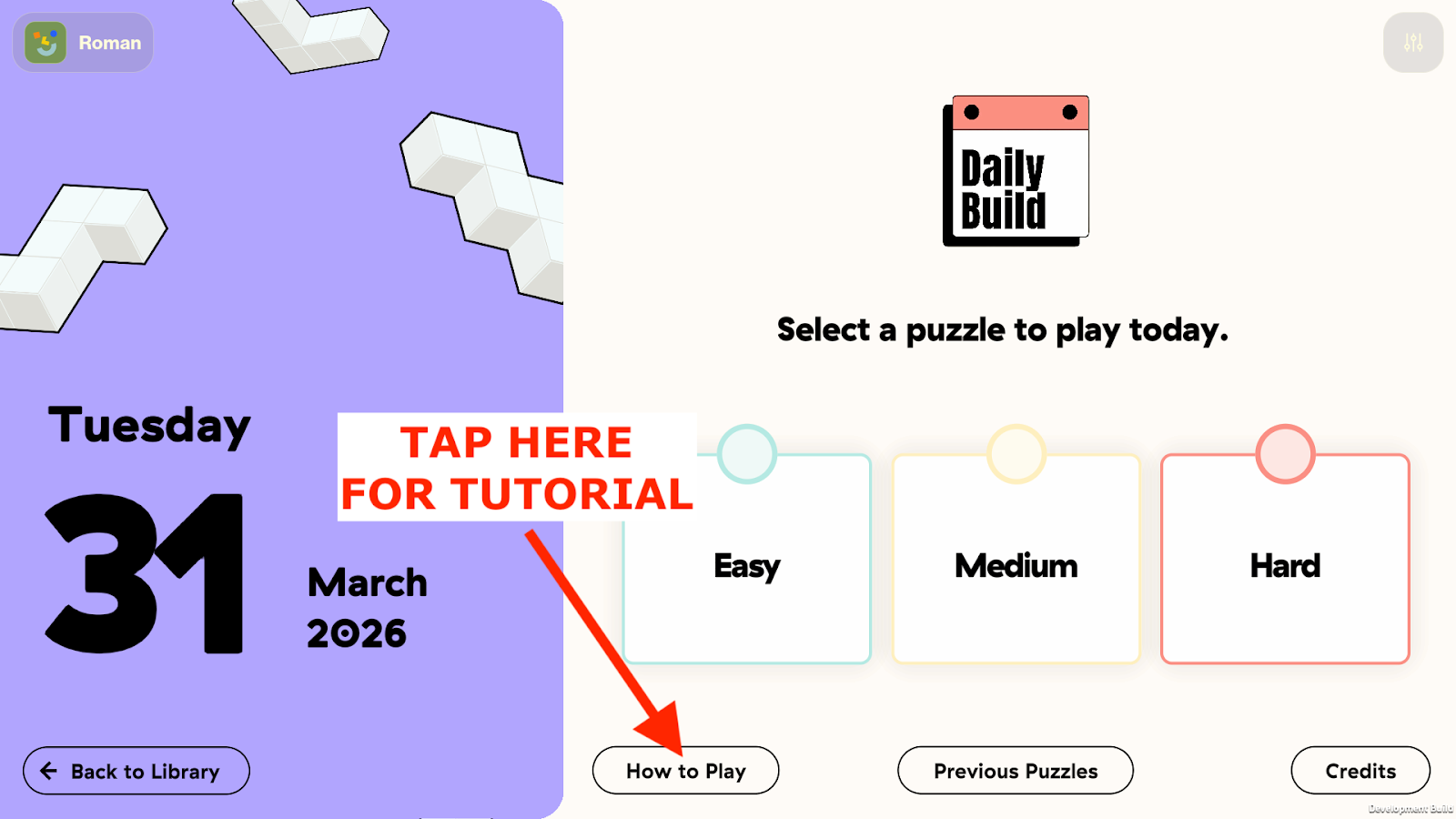
Daily Build includes an interactive tutorial. From the main screen, select "How to Play" at the bottom to launch it. The tutorial walks you through placing blocks and meeting height requirements step by step.
Gameplay
Each day, three new puzzles are released at midnight local time (Easy, Medium, and Hard). Open Daily Build, select today's puzzle, and place the indicated blocks on the screen to match the required shape and heights.
The Board tracks your completion time and the number of hints you used.
Daily Reset & Previous Puzzles
The new daily puzzles will appear automatically in the calendar view.
To play puzzles from previous days:
From the main page, tap "Previous Puzzles" near the bottom of your Board
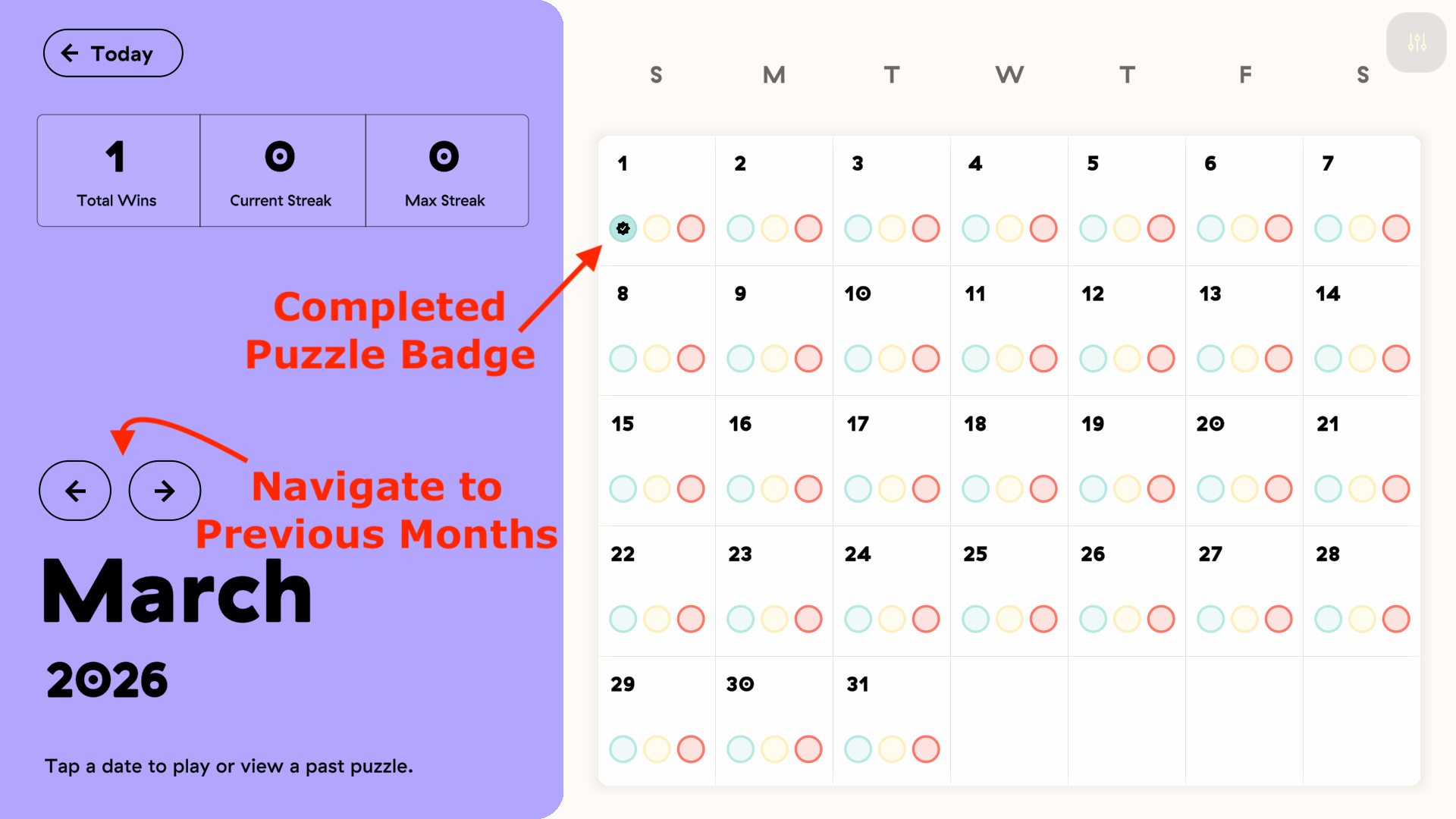
A calendar shows the current month — three dots on each date represent the Easy, Medium, and Hard puzzles. Completed puzzles show a badge instead of an empty dot.
To navigate to previous months, tap the arrow above the current month on the left side of your Board
FAQs
How do I get hints? Tap the lightbulb icon in the bottom-left corner while playing. It shows the correct placement for your first block. Place that piece, then tap again for the next hint.
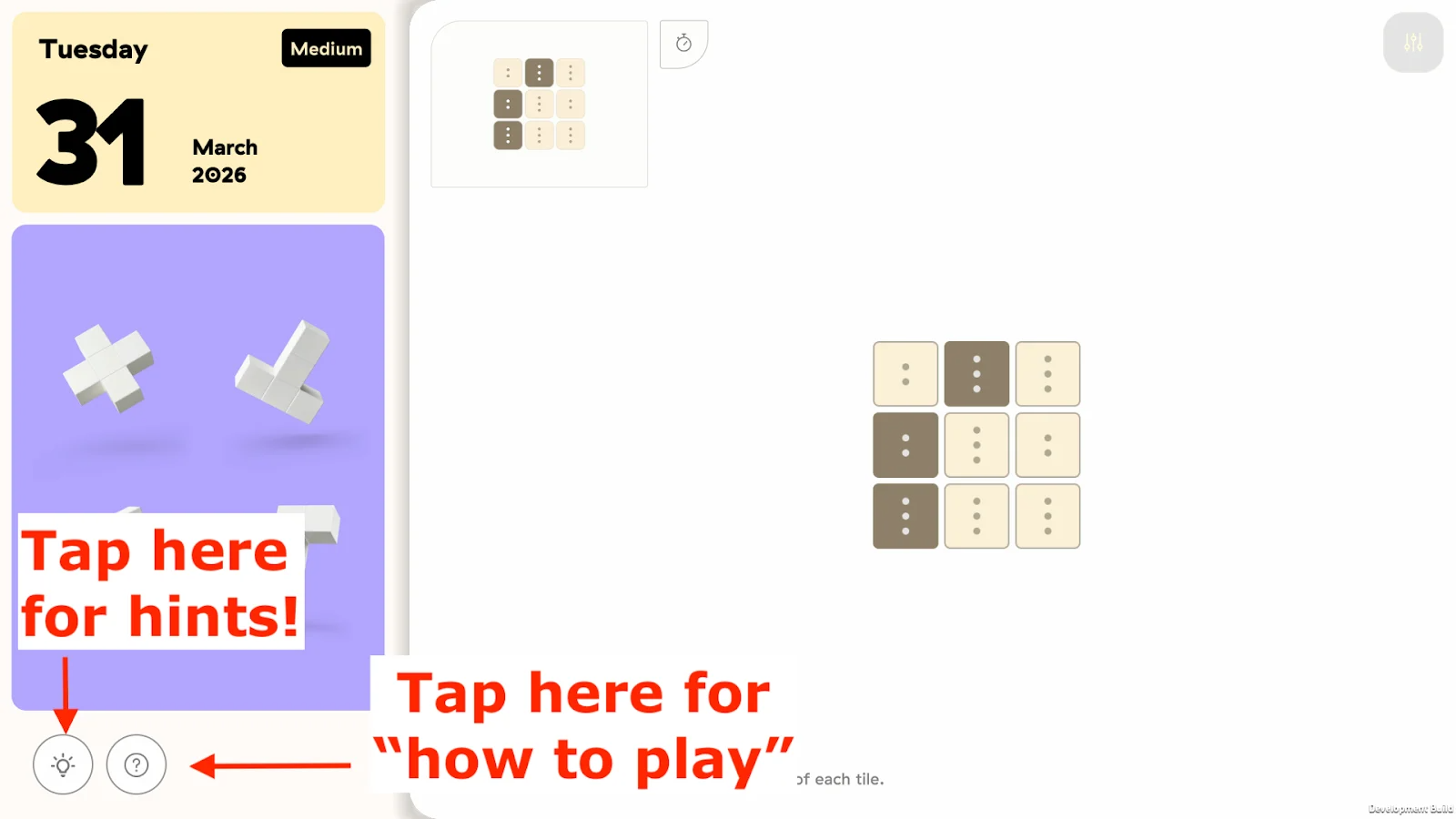
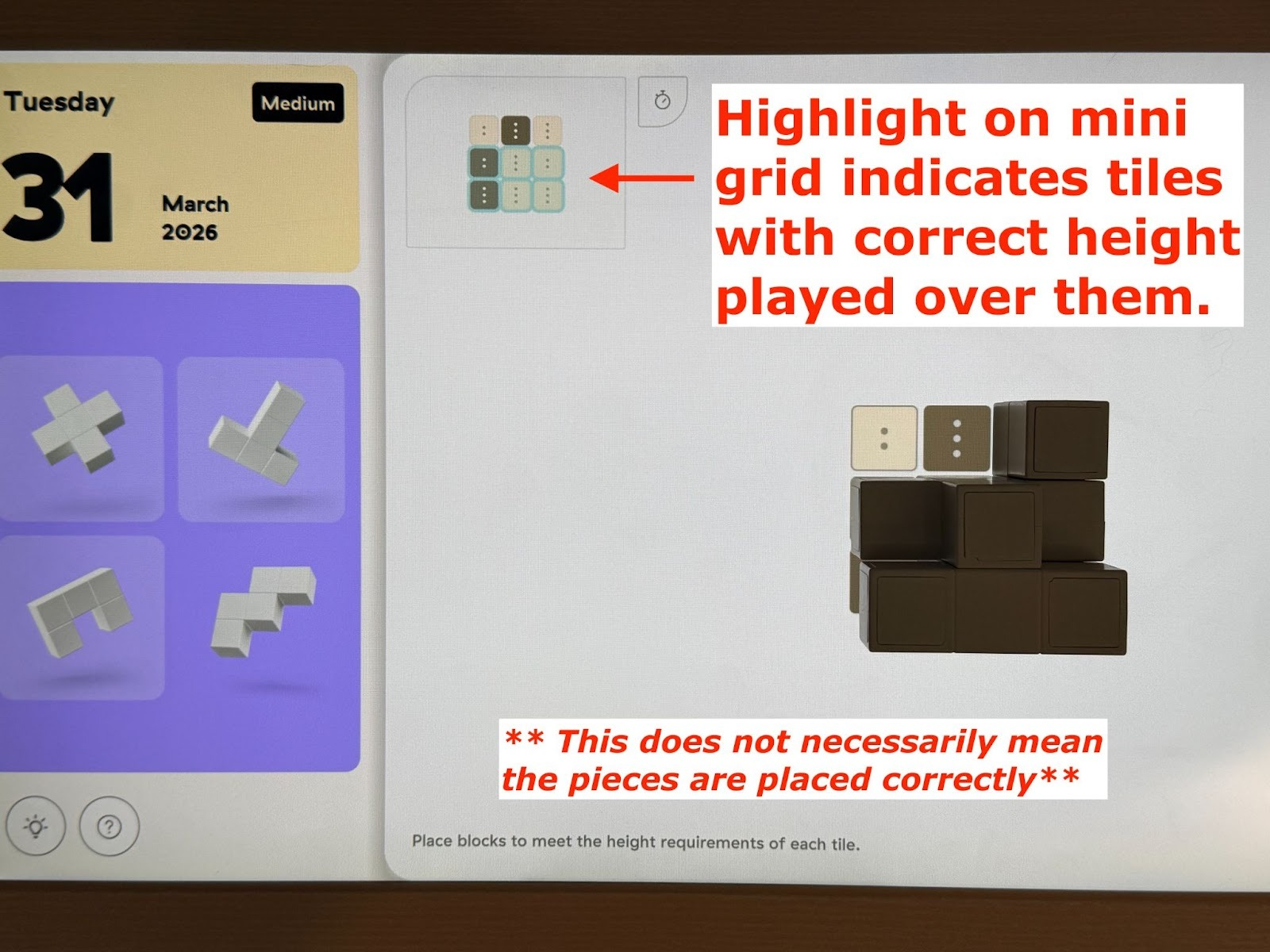
What is the mini grid in the top-left corner? It's a small view of the full puzzle layout — helpful when placed blocks start covering parts of the main grid. A teal highlight means the correct height has been placed on that tile. However, it only confirms height is correct, not that the full arrangement is right!
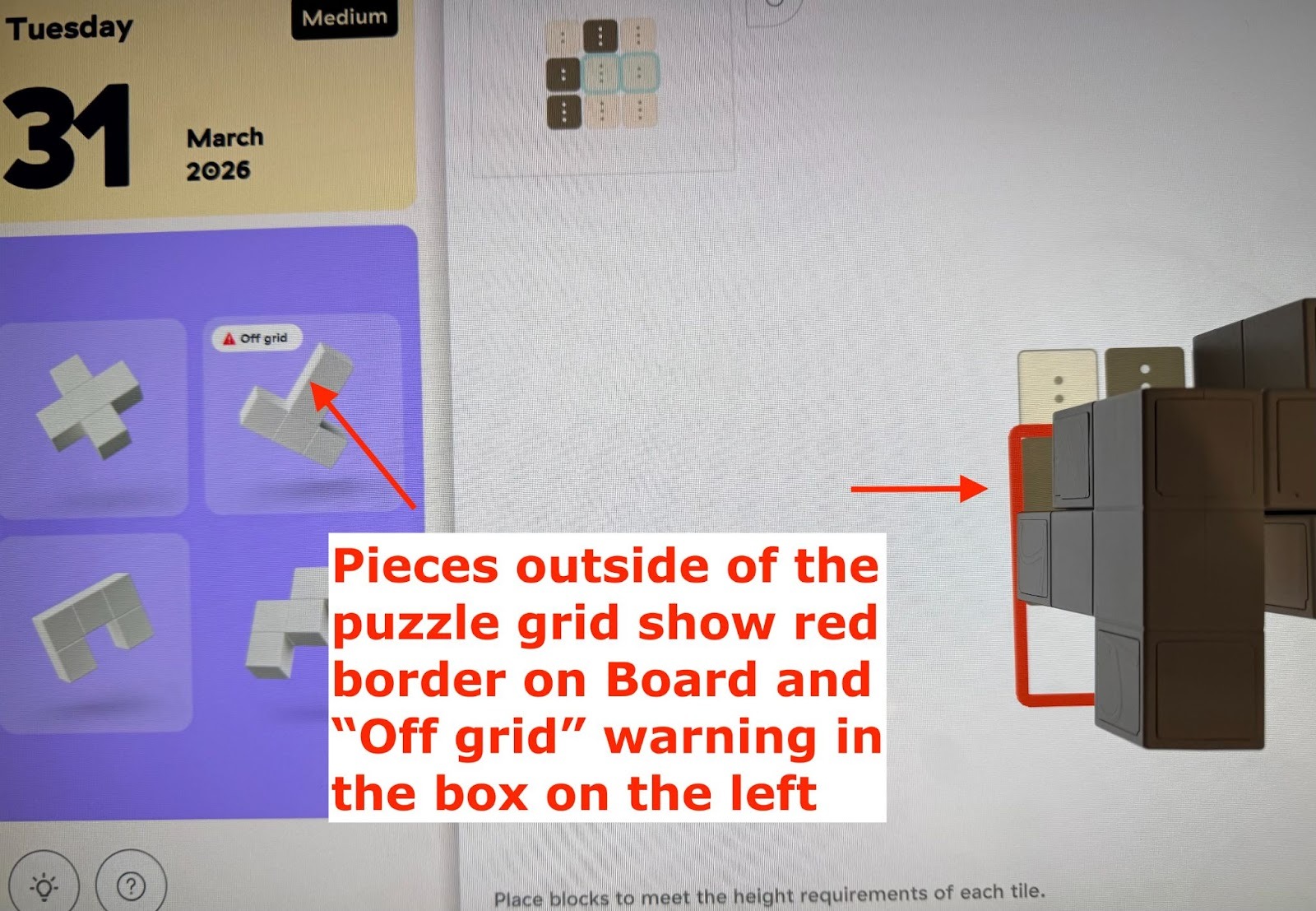
What does it mean when a piece turns red? Part of the piece extends outside the puzzle boundary. The piece selection panel will also show an "off grid" message. Adjust the placement so all parts stay within the grid.
Rules
If you want to review rules outside the built-in tutorial, here is a quick rule overview.